
Setting up IPTV should be simple. Yet many users run into playlist errors, missing EPG data, buffering issues, or apps that simply do not work correctly. This IPTV Installation Guide walks you through the exact setup process for the most common devices used in the USA.
Whether you use Firestick, Android TV, Smart TVs, iPhone, Windows 11, or TiviMate IPTV Player, this guide explains how to install IPTV correctly, configure playlists, improve performance, and avoid the setup mistakes many first-time users make.
Many IPTV problems are not caused by the app itself. In most cases, login details, unstable internet connections, incorrect EPG settings, or overloaded playlists create the issue.
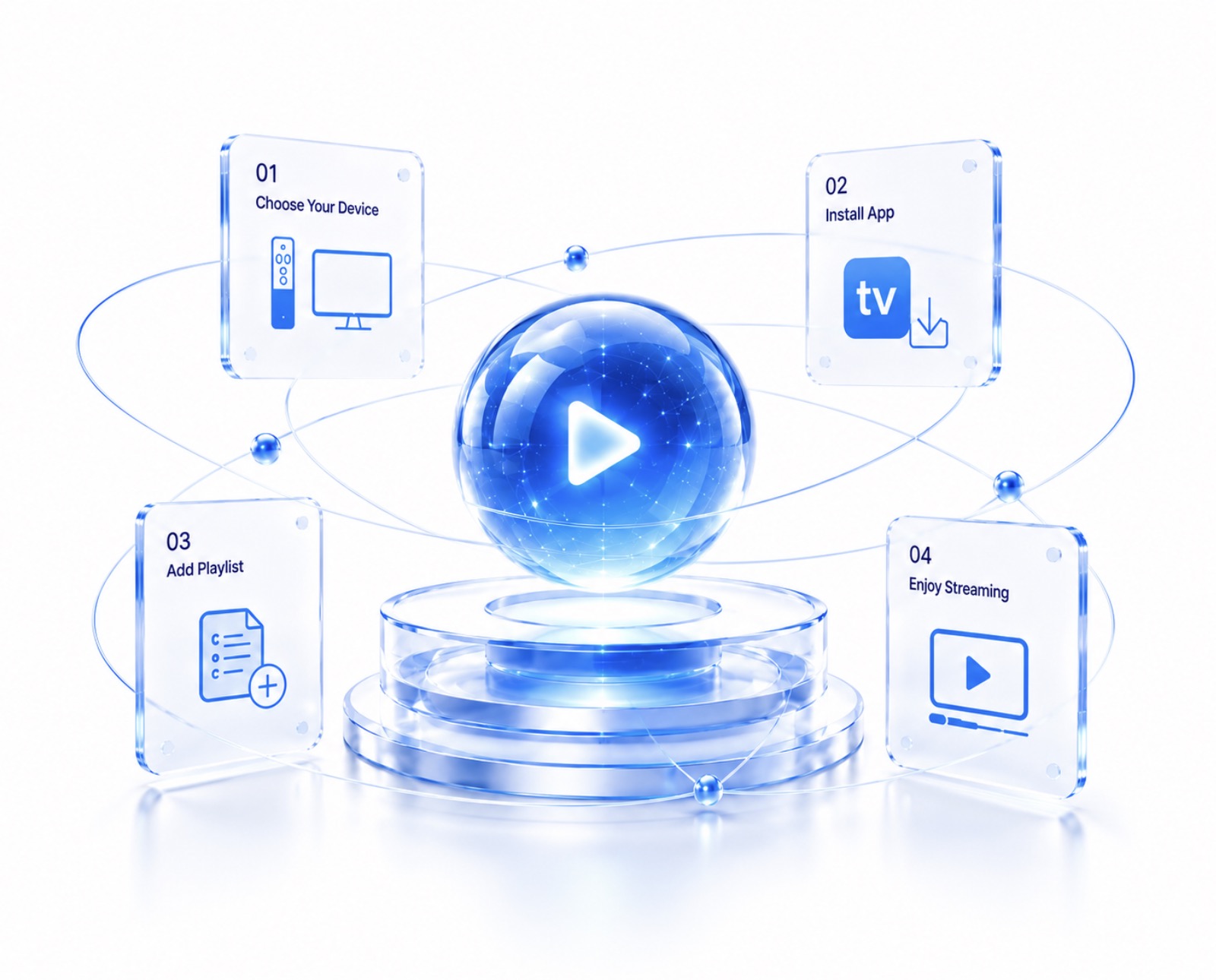
Before installing IPTV, make sure everything required for setup is ready.
You usually need:
Important:
TiviMate is an IPTV player only. It does not include live channels, subscriptions, movies, or sports access. IPTV content comes from your provider.
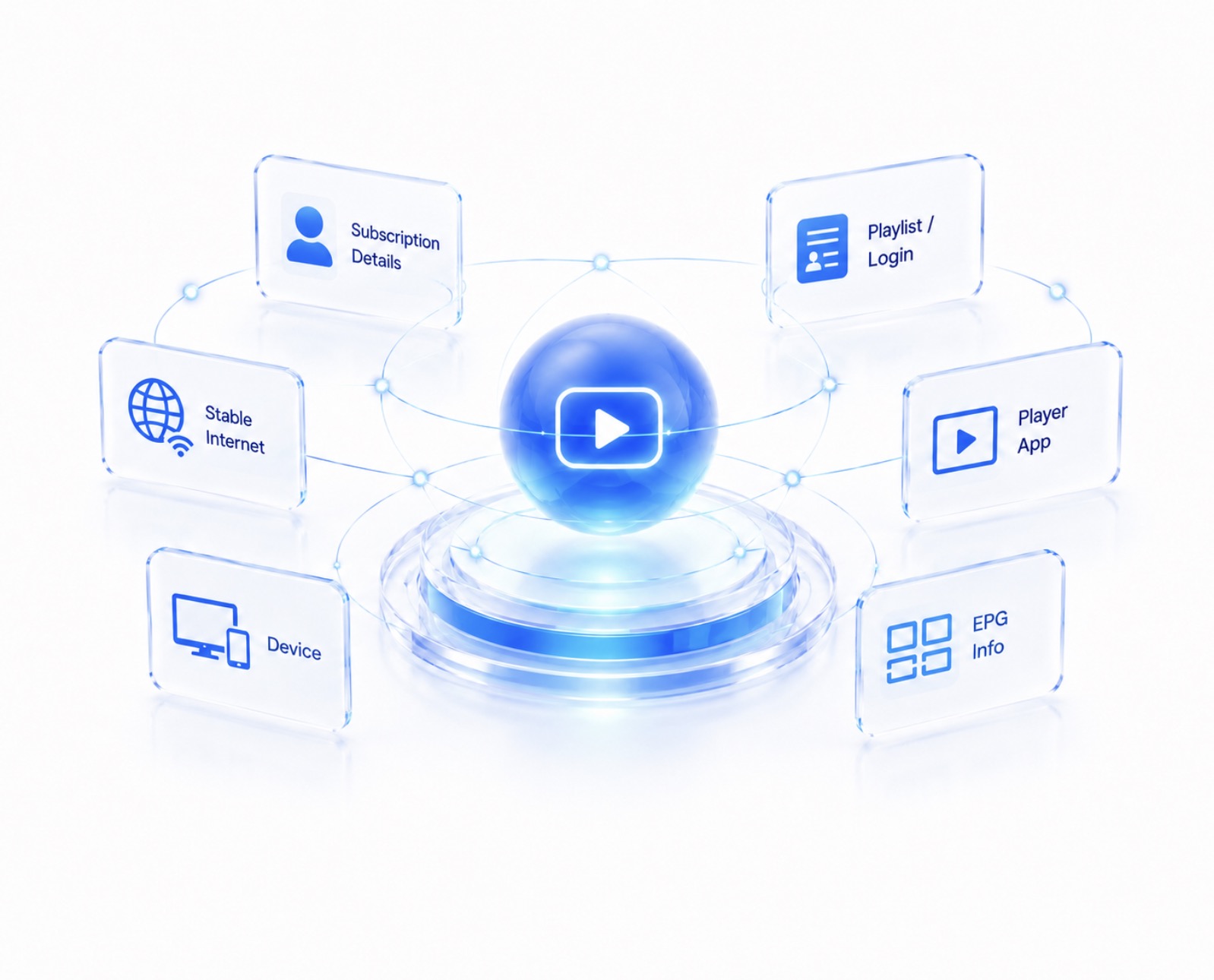
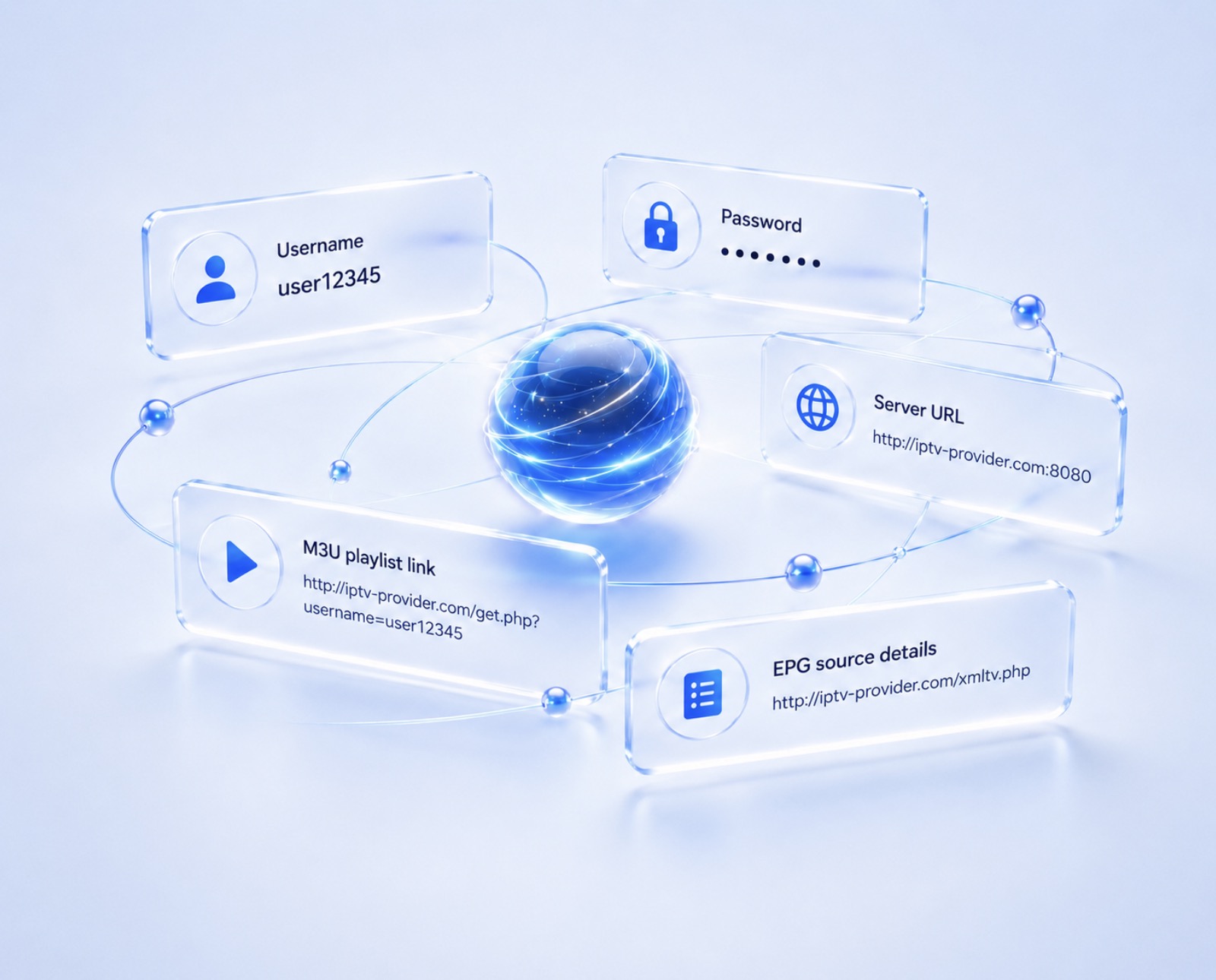
After activation, users commonly receive:
Many setup problems happen because one small character is entered incorrectly.
Users often copy IPTV login details manually and accidentally insert spaces at the beginning or end of links. Copying directly usually prevents login failures.
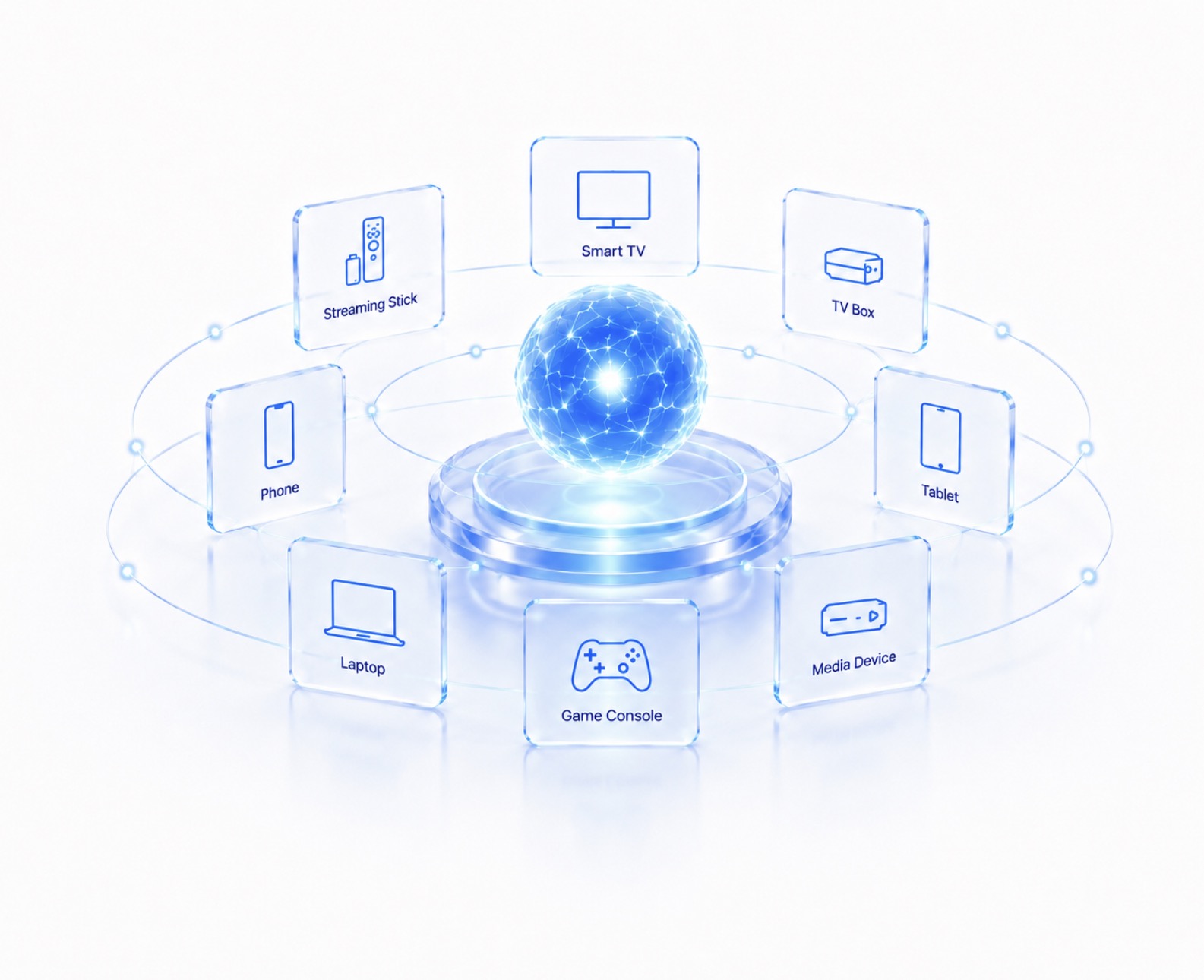
This setup guide works across the devices most commonly used by IPTV users in the USA:
For long-term IPTV streaming, Firestick and Android TV remain the most common choices because they support more IPTV applications and setup methods.
Many new users ask:
Which device works better for IPTV?
The answer depends on how you watch content.
Users with large IPTV playlists containing thousands of channels often notice Android TV devices perform more smoothly than lower-storage streaming sticks.
Firestick remains one of the most popular IPTV streaming devices in the USA.
Open:
Allow:
Open:
Select:
Enable:
Many users watching NFL Sundays, UFC events, and live sports notice stronger IPTV performance after using an Ethernet adapter instead of WiFi.
Large live events can create network congestion on wireless connections.
Android TV remains one of the easiest IPTV platforms.
Step 1:
Step 2:
Step 3:
Large IPTV playlists with 20,000+ channels sometimes take several minutes to finish loading during first setup.
This is normal.
Some Smart TVs do not support TiviMate directly.
Alternative IPTV players often work well.
Install app from your TV store and activate your playlist.
Apple devices support IPTV through compatible applications.
Desktop IPTV traffic remains important because many users stream directly from PCs.
Open Microsoft Store
Install:
Add playlist
Start streaming
Users generally need:
Installing TiviMate alone does not load channels.
You must add IPTV details.
Open: TiviMate
Select: Add Playlist
Enter:
Wait while channels load.
Large playlists can require extra loading time.
EPG stands for Electronic Program Guide.
EPG displays:
Without EPG:
Large EPG databases can require several minutes during first synchronization.
Many users incorrectly assume setup failed.
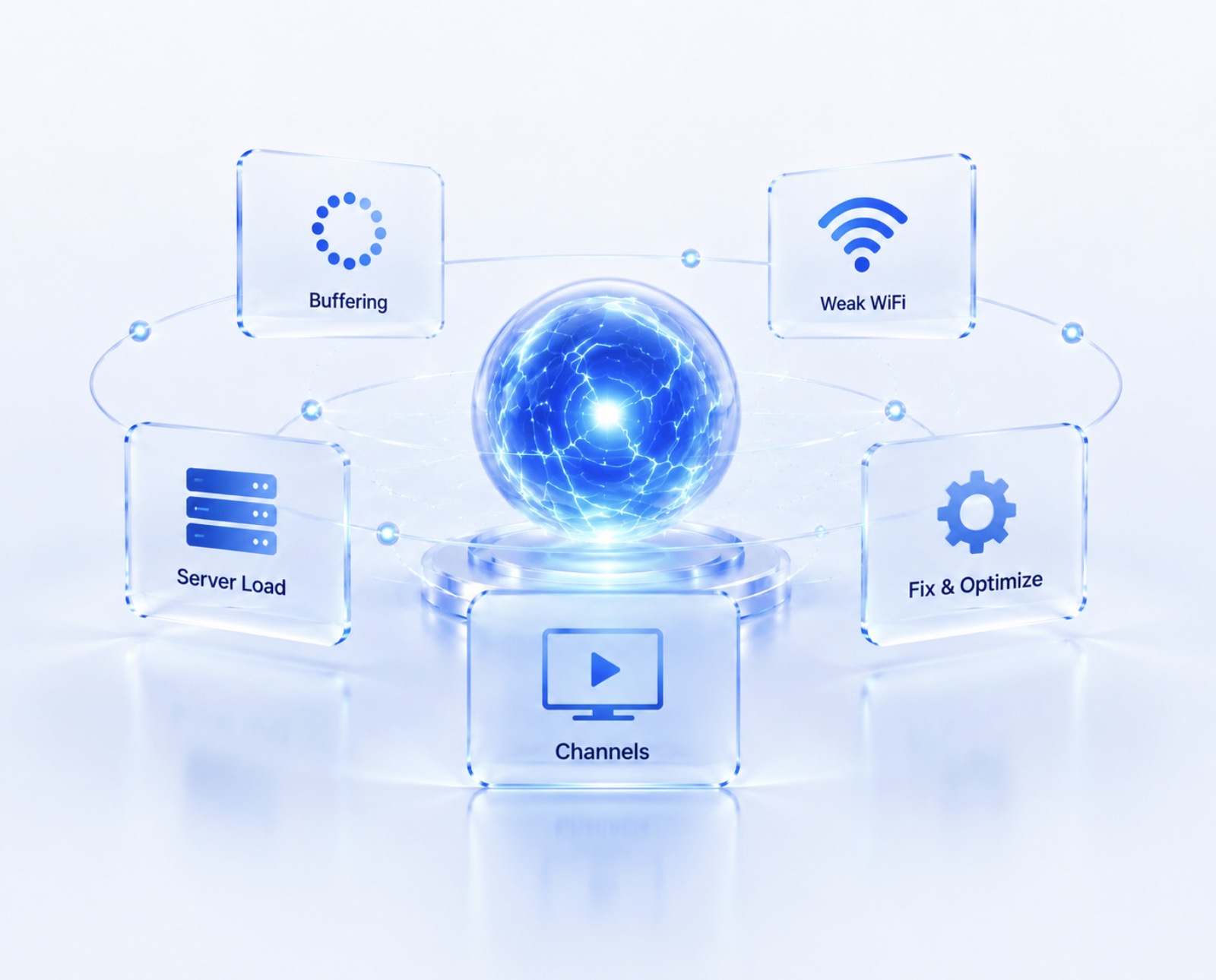
Buffering can happen because of:
Fixes:
Possible causes:
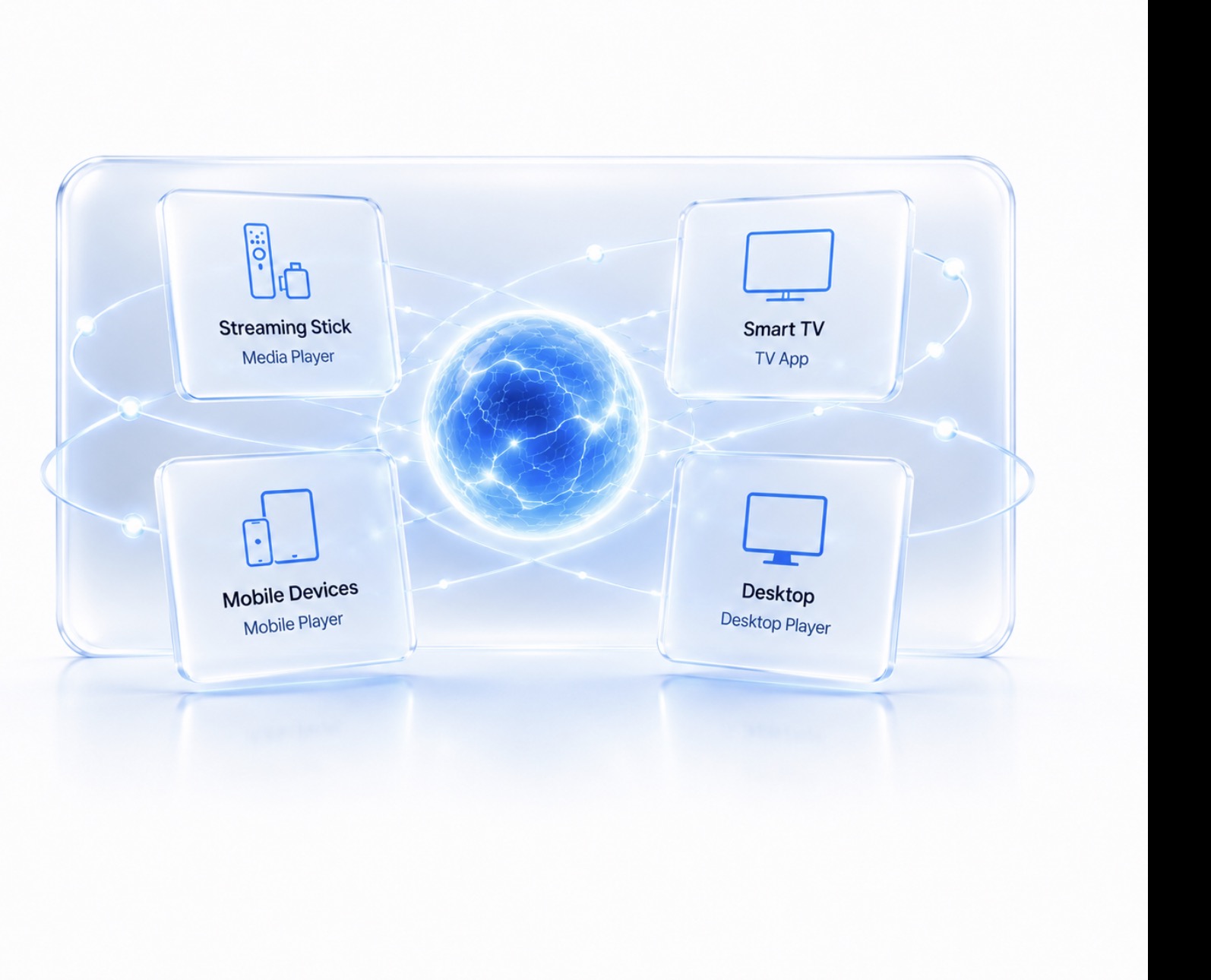
Different devices often perform better with different apps.
Firestick: TiviMate
Samsung & LG TVs: IBO Player
Apple Devices: GSE Smart IPTV
Windows: IPTV Smarters
Choosing the right app often improves playback quality and navigation.
Thousands of viewers across the USA use our IPTV subscription service for sports, entertainment, and reliable live TV streaming.
To install IPTV on Firestick, first install Downloader, enable Developer Options, download an IPTV player like TiviMate, and then enter your IPTV login details using Xtream Codes or an M3U playlist. After setup, channels and EPG data load automatically.
Before IPTV setup, you usually need an active IPTV subscription, login details such as Xtream Codes or M3U URL, a stable internet connection, and an IPTV player like TiviMate or IPTV Smarters.
No. TiviMate is only an IPTV player. It does not provide channels, movies, or subscriptions. You must connect an IPTV service to access live TV and content.
TiviMate is one of the most popular IPTV players for Firestick because it offers a clean interface, EPG support, playlist management, and better navigation for live TV and sports streaming.
IPTV buffering during NFL, UFC, NBA, or live events usually happens because of slow internet speeds, ISP throttling, weak WiFi signals, overloaded servers, or network congestion during peak streaming hours.
Xtream Codes is a login system used by IPTV providers. Instead of manually adding long playlist URLs, users enter a server URL, username, and password. This automatically loads channels, categories, and EPG information.
If channels appear but do not play, the issue may come from expired subscriptions, incorrect login credentials, playlist errors, server issues, or outdated IPTV apps. Rechecking login details often solves the problem.
Most IPTV playlist setups finish within a few minutes. However, large playlists containing thousands of channels, movies, and VOD content can take longer during the first synchronization.
EPG may not load because of incorrect EPG URLs, outdated playlist data, delayed synchronization, or provider-side issues. Refreshing the EPG manually often fixes the problem.
Yes. IPTV works on Smart TVs, Windows 11 PCs, iPhone, iPad, Apple TV, Android TV, Firestick, and many other streaming devices using compatible IPTV player applications.
Set up IPTV on Firestick, Android TV, Smart TVs, Windows 11, and TiviMate within minutes. Watch sports, live channels, movies, and premium entertainment with stable streaming and easy setup.